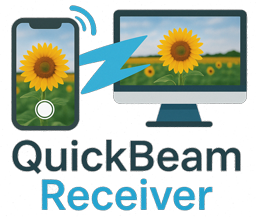
iPhone sender → Android receiver
How to transfer photos and files from iPhone to Android
Moving selected photos from iPhone to Android can be awkward when the devices do not share the same cloud library or built-in sharing system. QuickBeam gives both devices a common browser-based workflow.
The Android phone displays a temporary QR code. The iPhone scans it and selects the files. Encryption happens in Safari on the iPhone, and decryption happens in the receiving Android browser.
Step-by-step instructions
-
Prepare the Android receiver
Open quickbeam.app in Chrome on the Android phone. Leave the generated QR code on screen.
-
Connect the iPhone sender
Use the iPhone Camera app to scan the Android screen. Tap the QuickBeam banner to open the private sender page in Safari.
-
Select iPhone photos or files
Tap Choose Files, then select from the Photos library or Browse in Files. Confirm the items you want to copy to Android.
-
Wait on both devices
Keep both screens awake and the two browser pages active while the encrypted upload and download progress.
-
Open the downloads on Android
Use Files, Files by Google, or the browser's Downloads list to find the received items. Move photos into another folder if your gallery does not show Downloads automatically.
Good to know
- QuickBeam copies files; it does not erase them from the iPhone.
- HEIC photos remain HEIC files. Whether the Android gallery displays them depends on that device's software; QuickBeam does not convert formats.
- For a complete migration of contacts, apps, and an entire photo library, use the phone manufacturer's migration tool instead.
Frequently asked questions
Can I send iPhone photos to Android without installing an app?
Yes. QuickBeam uses Safari on the iPhone and a modern browser on Android. No QuickBeam account or native app is required.
Will iPhone Live Photos stay live on Android?
The file picker and destination software determine what is selected and displayed. QuickBeam transfers the chosen file without converting it, so Apple-specific Live Photo behavior may not carry over to every Android gallery.
Can I reverse the direction later?
Yes. Reload QuickBeam on the iPhone so it becomes the receiver, then scan its QR code from Android. See the Android-to-iPhone guide for the exact steps.